> ## Documentation Index
> Fetch the complete documentation index at: https://docs.enkryptify.com/llms.txt
> Use this file to discover all available pages before exploring further.
# AWS Amplify
* An Enkryptify workspace with admin access
* An AWS account with permissions to create IAM roles and policies
* An AWS Amplify app
Enkryptify connects to your AWS account by assuming an IAM Role that you create. We use temporary credentials from `sts:AssumeRole` to manage secrets in AWS Secrets Manager.
* Trust relationship:
* Trusted entity: AWS Account `676206939822` (Enkryptify)
* External ID: not required (will be added in a future update)
* Required permissions on the assumed role (inline policy example below):
* `amplify:UpdateApp`
* `amplify:UpdateBranch`
* `amplify:GetApp`
* `amplify:GetBranch`
* `amplify:ListApps`
* `amplify:ListBranches`
> You may scope the `Resource` to specific secret ARNs. The example uses `*` for simplicity.
## Steps to complete
* Go to the `Syncs` tab of your project and click on `AWS Amplify`.
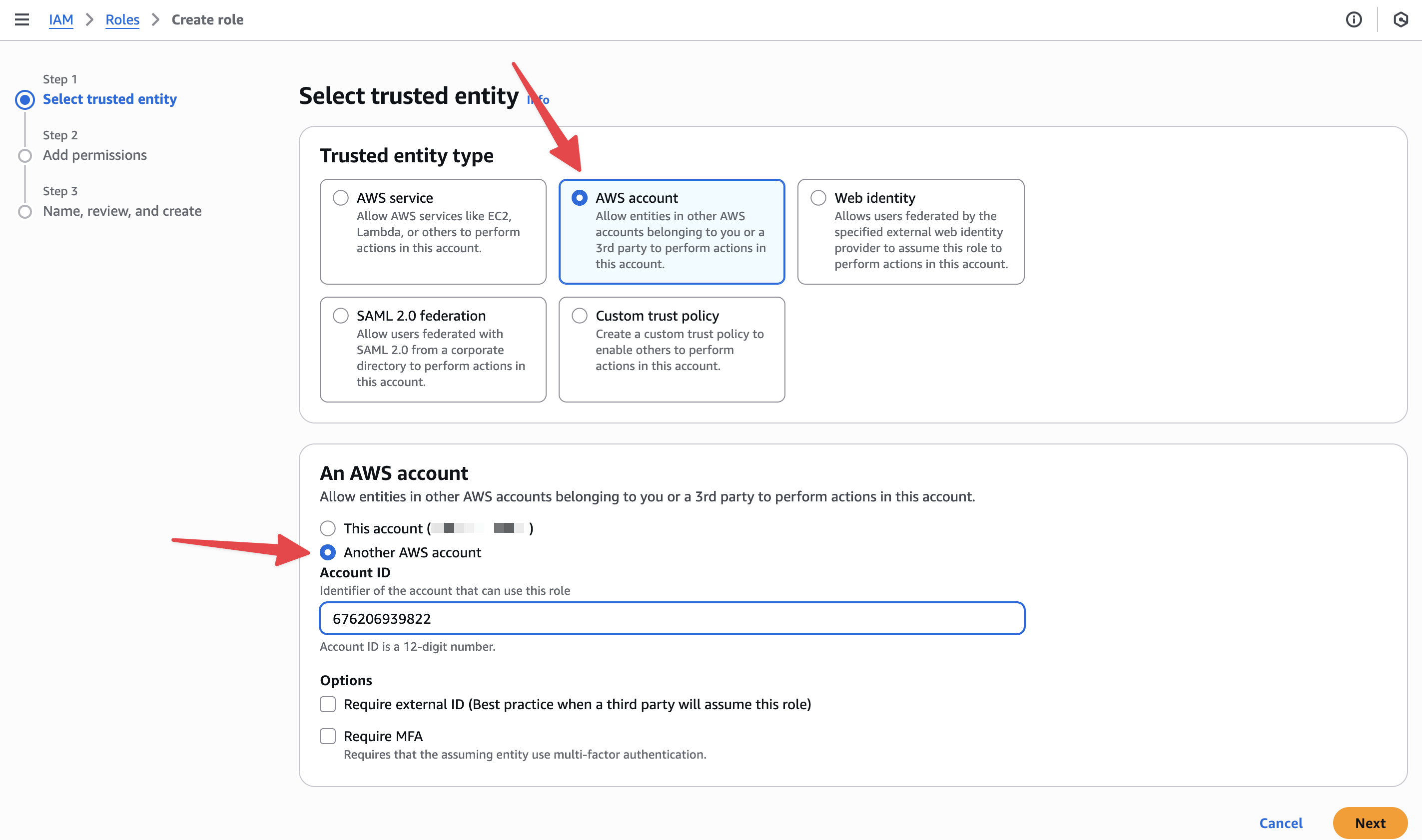
* In AWS IAM → `Roles` → `Create role`.
* Trusted entity type: `AWS Account` → `Another AWS Account`.
* Enter Account ID `676206939822`.
* External ID: not required (will be added in a future update).
 * Skip the 'Add permissions' step.
* Provide a role name and finish creation.
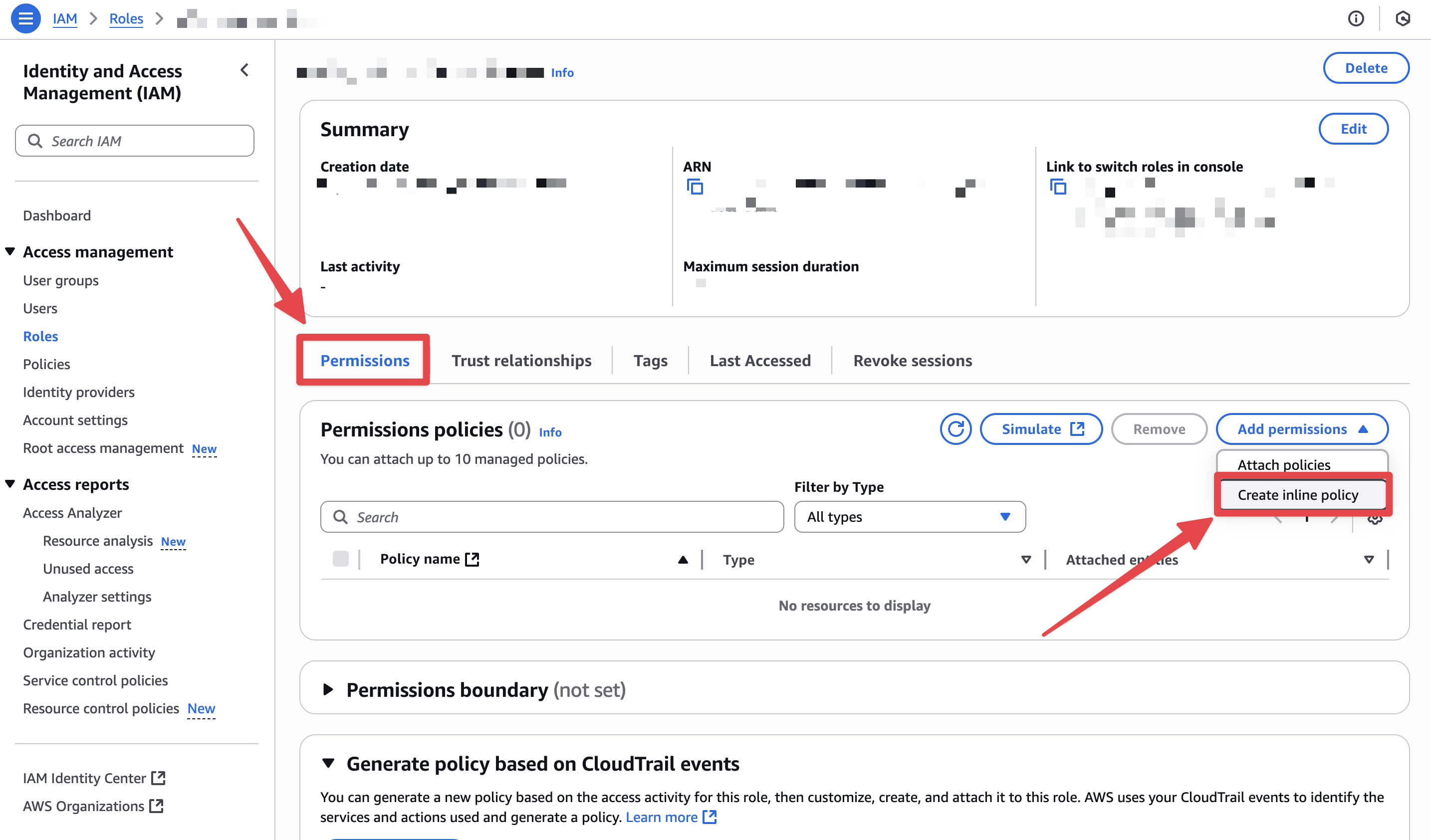
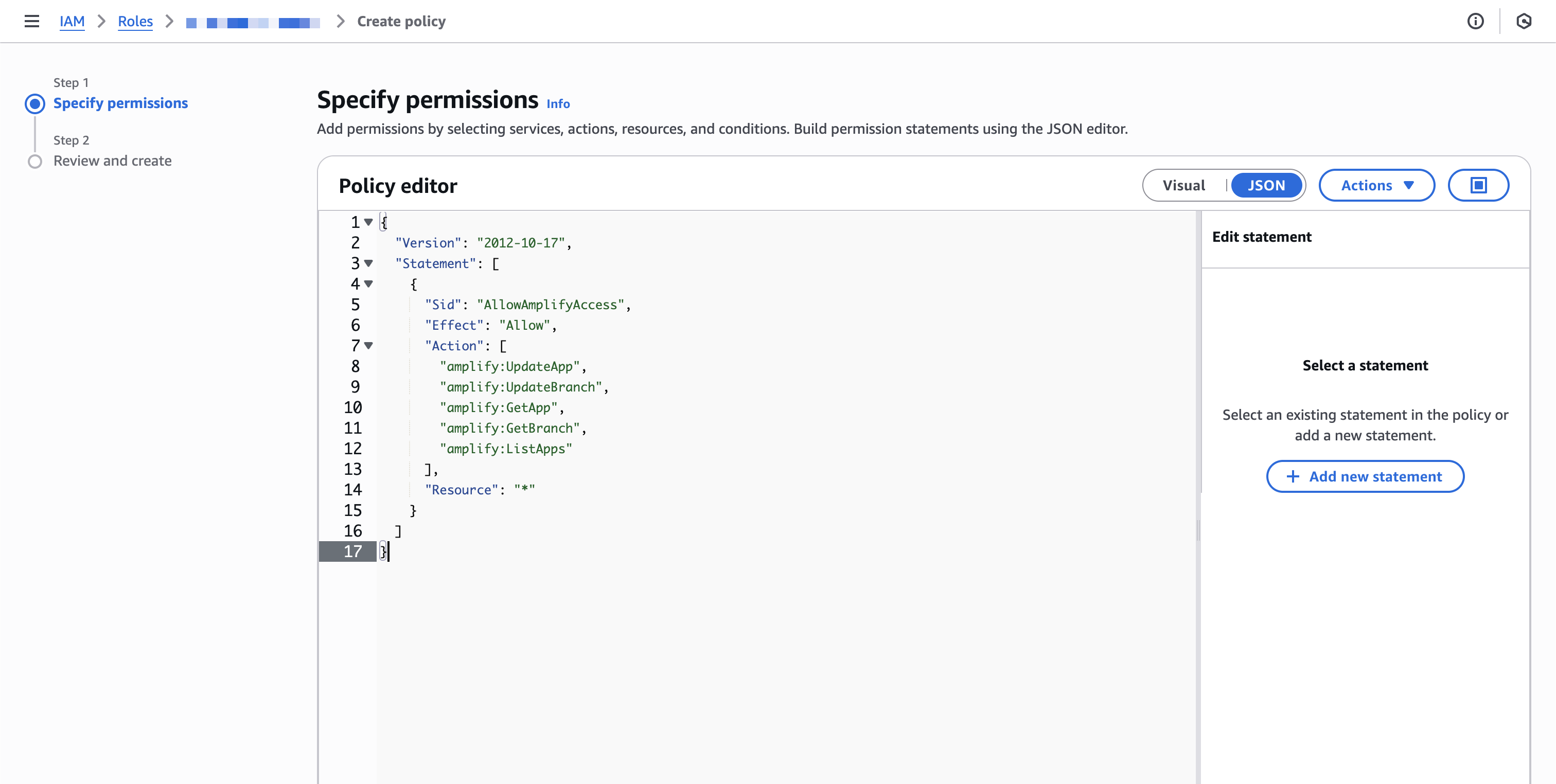
* On the role page, go to `Permissions` → `Add permissions` → `Create inline policy` → `JSON`, then paste:
```json theme={"dark"}
{
"Version": "2012-10-17",
"Statement": [
{
"Sid": "AllowAmplifyAccess",
"Effect": "Allow",
"Action": [
"amplify:UpdateApp",
"amplify:UpdateBranch",
"amplify:GetApp",
"amplify:GetBranch",
"amplify:ListApps",
"amplify:ListBranches"
],
"Resource": "*"
}
]
}
```
* Skip the 'Add permissions' step.
* Provide a role name and finish creation.
* On the role page, go to `Permissions` → `Add permissions` → `Create inline policy` → `JSON`, then paste:
```json theme={"dark"}
{
"Version": "2012-10-17",
"Statement": [
{
"Sid": "AllowAmplifyAccess",
"Effect": "Allow",
"Action": [
"amplify:UpdateApp",
"amplify:UpdateBranch",
"amplify:GetApp",
"amplify:GetBranch",
"amplify:ListApps",
"amplify:ListBranches"
],
"Resource": "*"
}
]
}
```
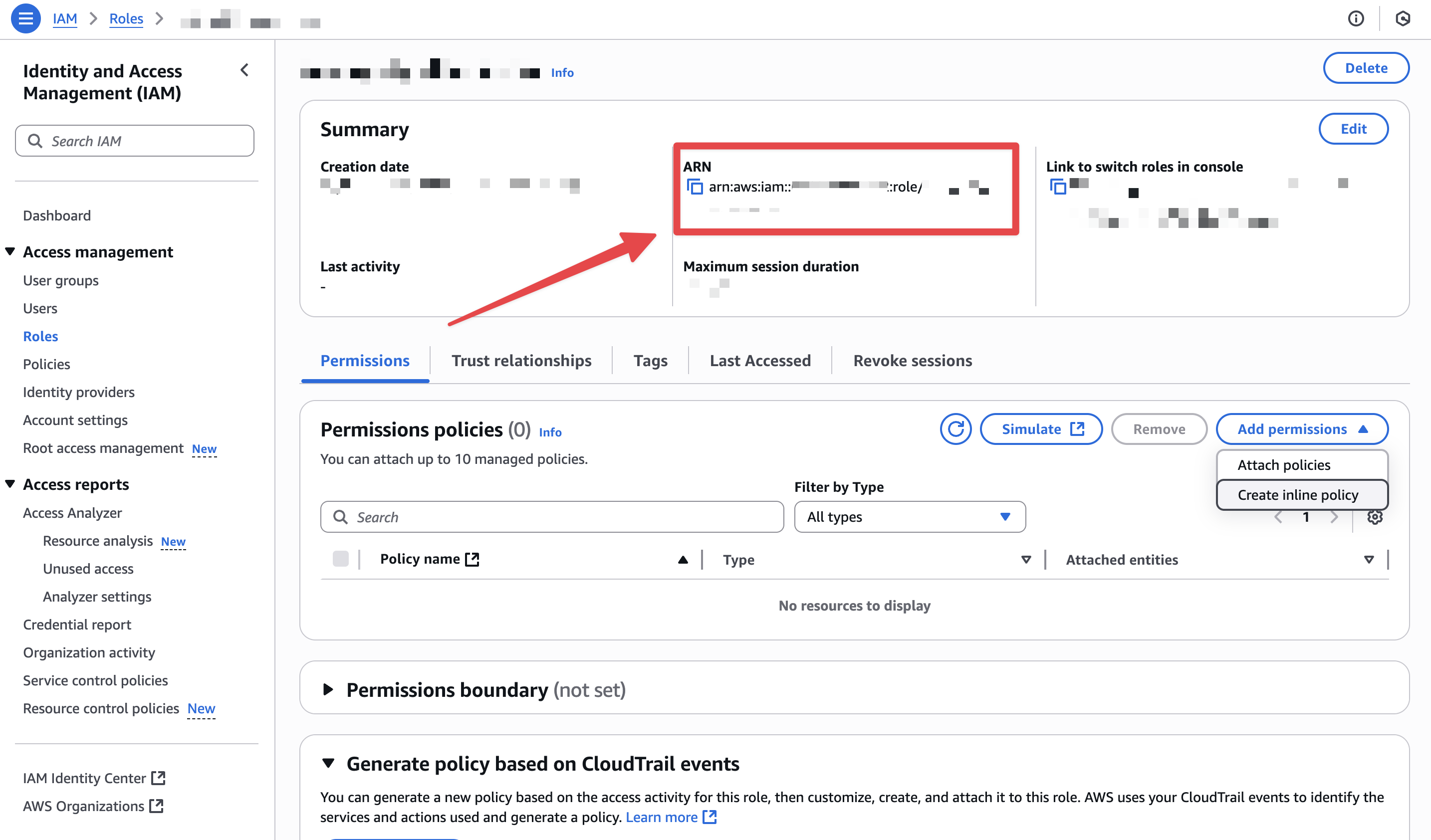
 * From the role's `Summary`, copy the `Role ARN`.
 * Paste the Role ARN into Enkryptify to complete authentication.
* Select the AWS region you want to sync secrets to.
* Select the Amplify app you want to sync.
* Example: `main` → `production` or `develop` → `staging`.
* Or choose 'All branches' for app-level variables.
* Paste the Role ARN into Enkryptify to complete authentication.
* Select the AWS region you want to sync secrets to.
* Select the Amplify app you want to sync.
* Example: `main` → `production` or `develop` → `staging`.
* Or choose 'All branches' for app-level variables.