> ## Documentation Index
> Fetch the complete documentation index at: https://docs.enkryptify.com/llms.txt
> Use this file to discover all available pages before exploring further.
# GCP Secret Manager
* An Enkryptify workspace with admin access
* A Google Cloud project
* Permissions to create a Service Account and grant IAM roles in the project
Enkryptify connects to your GCP project using Service Account impersonation. You create a Service Account in your project with Secret Manager permissions, then grant Enkryptify the ability to impersonate it.
* On your target Service Account the sync needs:
* `secretmanager.secrets.create`
* `secretmanager.secrets.delete`
* `secretmanager.secrets.get`
* `secretmanager.secrets.list`
* `secretmanager.versions.add`
* On the same Service Account: `Service Account Token Creator` (`roles/iam.serviceAccountTokenCreator`) to principal `enkryptify@enkryptify.iam.gserviceaccount.com`
> The impersonated Service Account does not have `secretmanager.versions.access`, so it cannot read secret payloads from GCP. Enkryptify only writes versions and reads metadata. Secret values are never fetched from GCP.
## Steps to complete
* Go to the `Syncs` tab of your project and click on `GCP Secret Manager`.
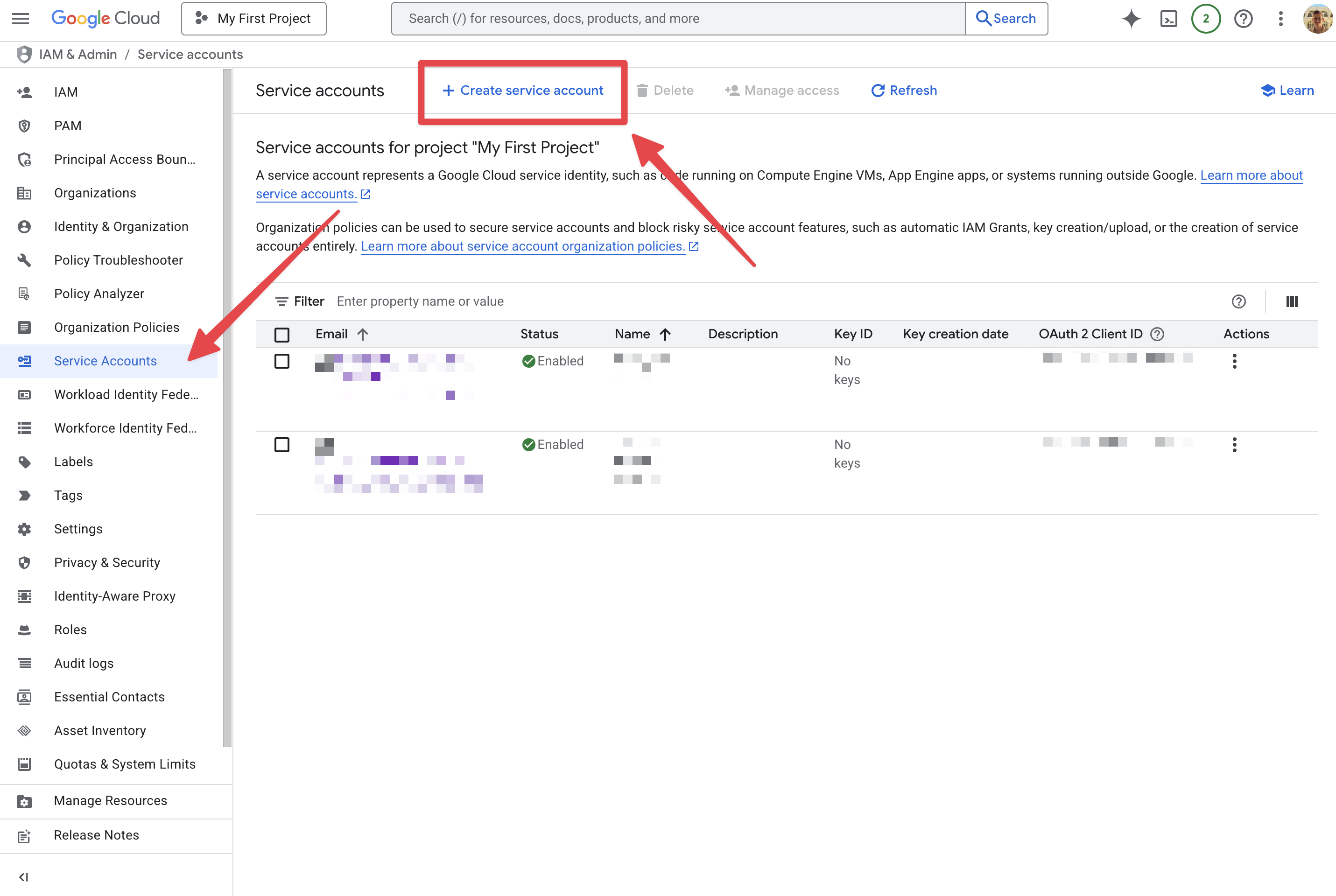
* Navigate to IAM & Admin → Service Accounts.
* Create a new Service Account with an ID of your choosing.
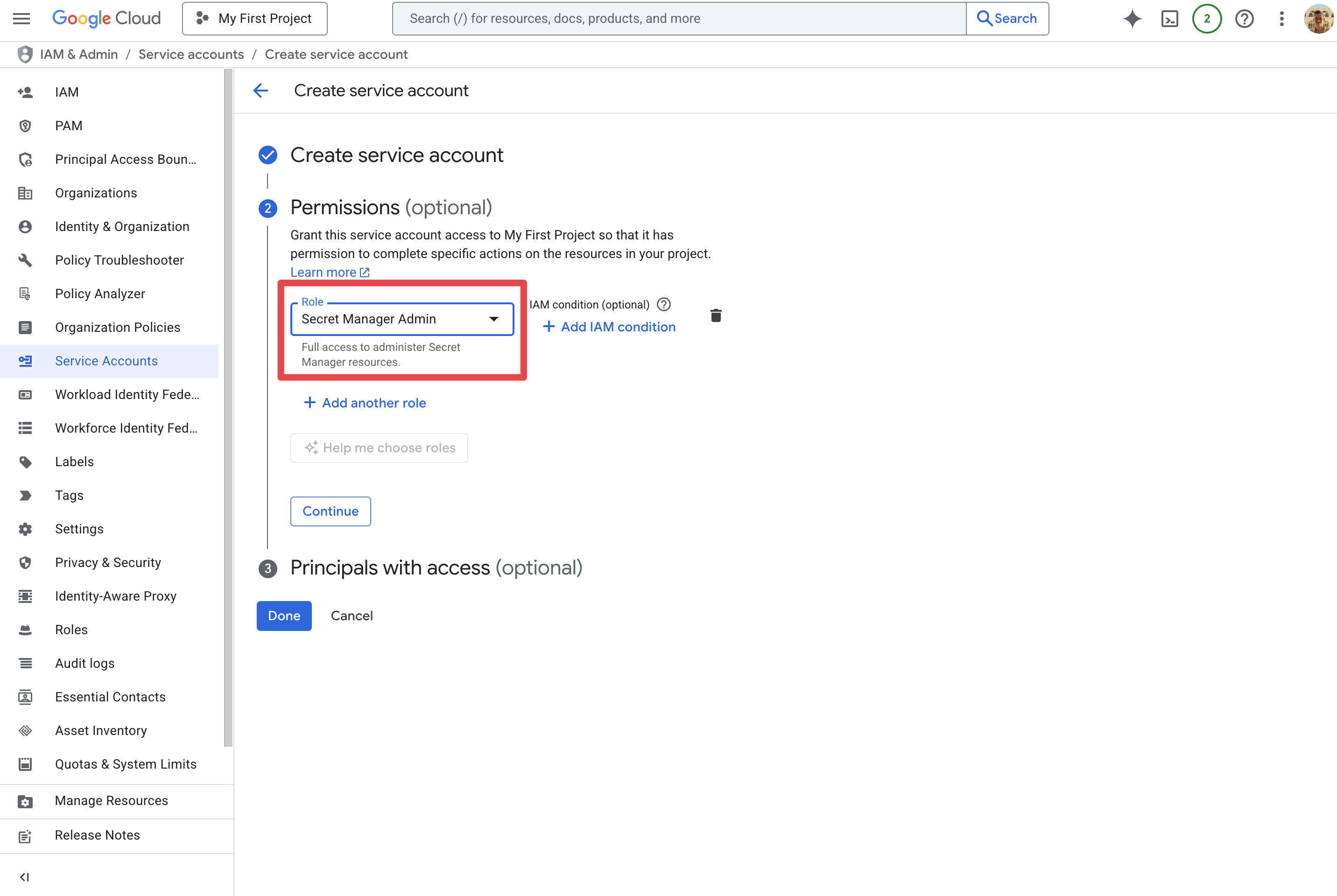
 * Create a new role with the following permissions (**recommended**):
* `secretmanager.secrets.create`
* `secretmanager.secrets.delete`
* `secretmanager.secrets.get`
* `secretmanager.secrets.list`
* `secretmanager.versions.add`
* OR use the following role:
* `Secret Manager Admin` (`roles/secretmanager.admin`)
* Create a new role with the following permissions (**recommended**):
* `secretmanager.secrets.create`
* `secretmanager.secrets.delete`
* `secretmanager.secrets.get`
* `secretmanager.secrets.list`
* `secretmanager.versions.add`
* OR use the following role:
* `Secret Manager Admin` (`roles/secretmanager.admin`)
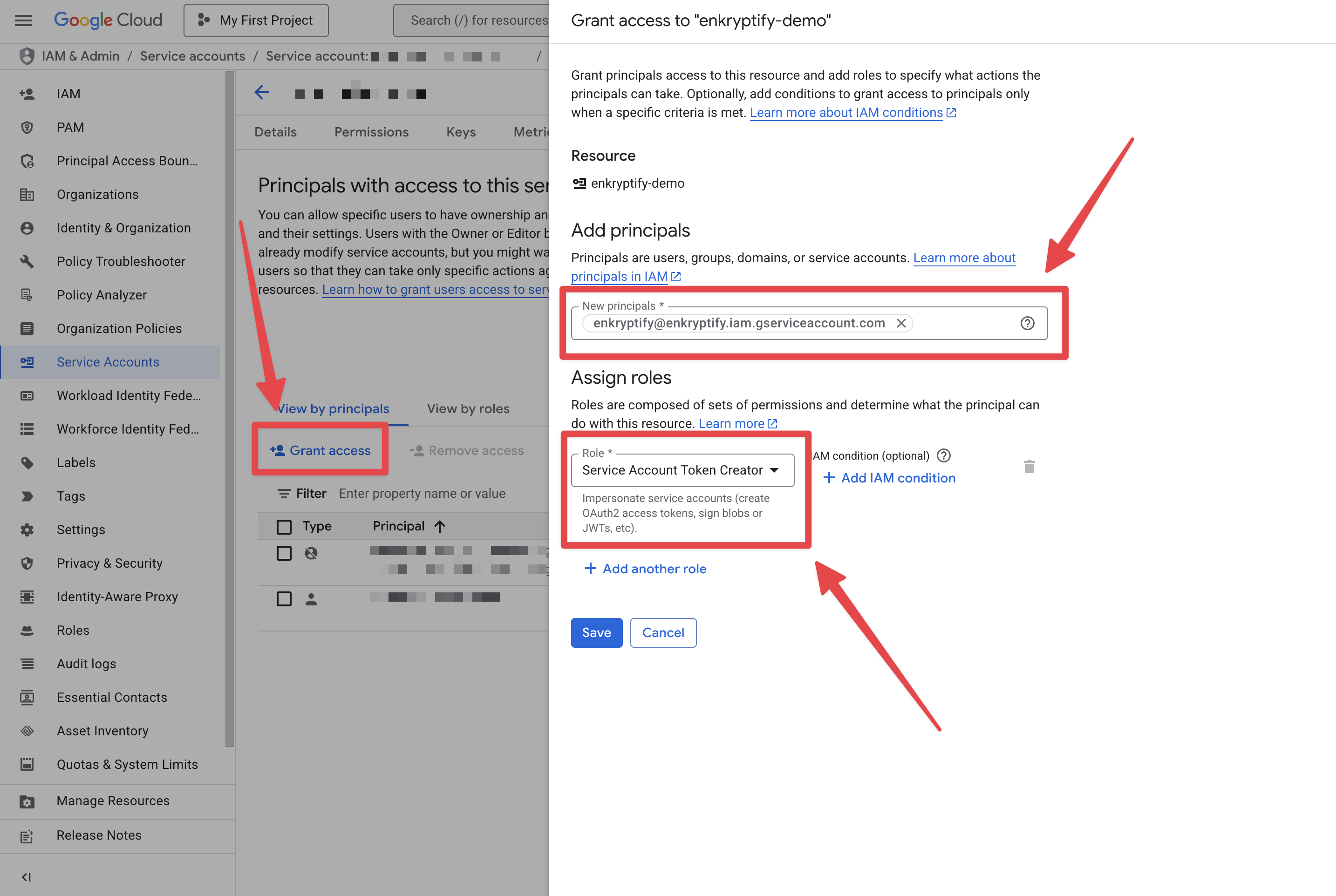
 * Grant `Service Account Token Creator` (`roles/iam.serviceAccountTokenCreator`) to `enkryptify@enkryptify.iam.gserviceaccount.com` on your Service Account.
* Open the Service Account → `Principals with access` tab → Grant Access → add the principal and role.
* Grant `Service Account Token Creator` (`roles/iam.serviceAccountTokenCreator`) to `enkryptify@enkryptify.iam.gserviceaccount.com` on your Service Account.
* Open the Service Account → `Principals with access` tab → Grant Access → add the principal and role.
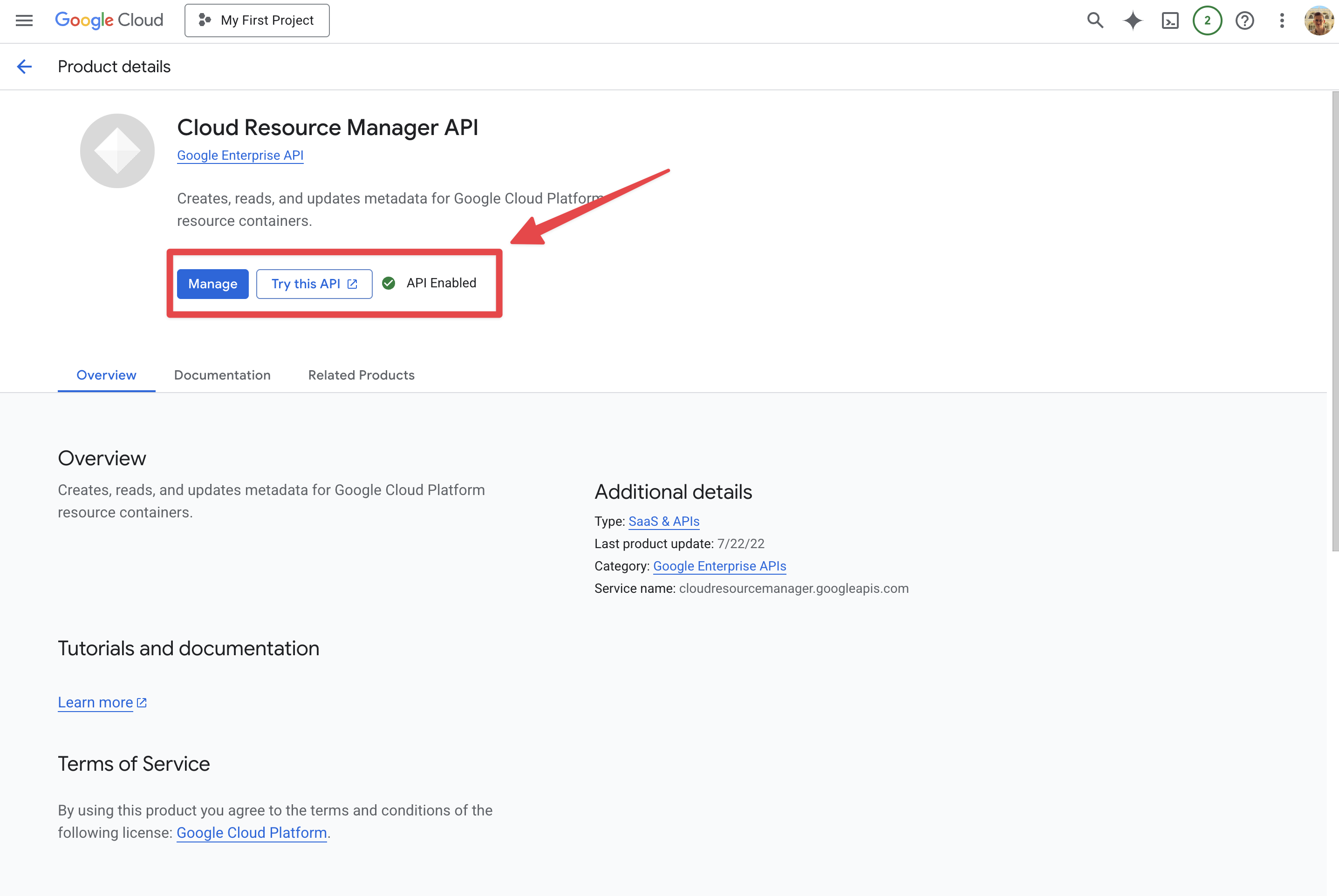
 * Ensure these APIs are enabled on your project:
* Cloud Resource Manager API
* Secret Manager API
* Service Usage API
* Ensure these APIs are enabled on your project:
* Cloud Resource Manager API
* Secret Manager API
* Service Usage API
 * In Enkryptify, enter your `Project ID` and the Service Account `Email` to impersonate.
* Choose which Enkryptify environment to sync.
* In Enkryptify, enter your `Project ID` and the Service Account `Email` to impersonate.
* Choose which Enkryptify environment to sync.