> ## Documentation Index
> Fetch the complete documentation index at: https://docs.enkryptify.com/llms.txt
> Use this file to discover all available pages before exploring further.
# Vercel
* An Enkryptify workspace with admin access
* A Vercel account with access to the target project or team
* Ability to install the Enkryptify Vercel Integration (app) for your account or team
When installing the Enkryptify Vercel Integration, we request only the permissions required to create and update environment variables on your selected project:
* Project permissions:
* Project Environment Variables: read and write
* Teams: read
* Projects: read
## Steps to complete
* Go to the `Syncs` tab of your project and click on `Vercel`.
* You'll be redirected to Vercel to install/authorize the Enkryptify app.
* Select the Vercel scope (personal or team) to install into.
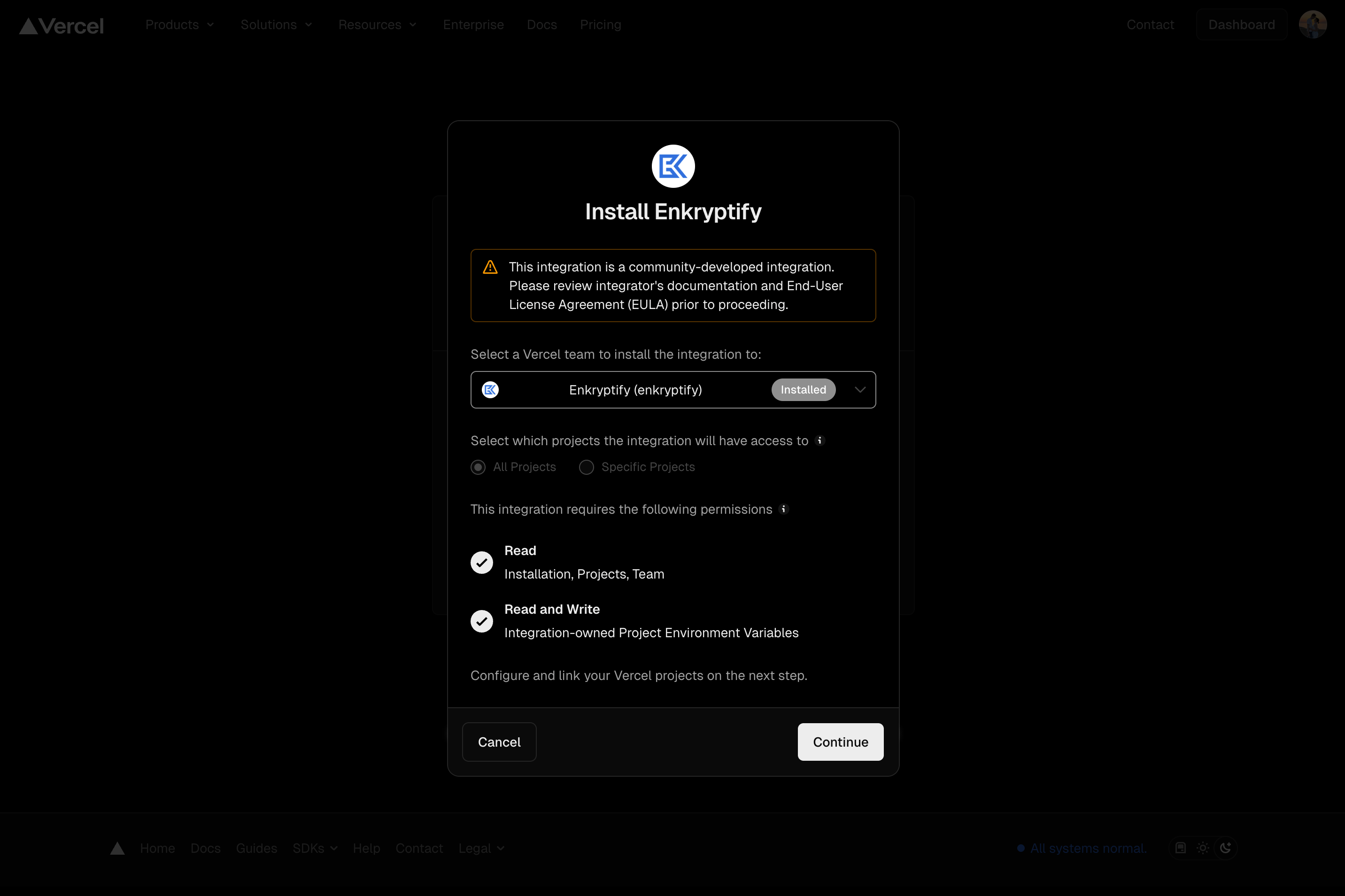 * Confirm the target project for syncing environment variables.
* Example: `main` → `Production` or `develop` → `Preview`.
Custom environments are not supported yet. You can map only to Vercel's `Development`, `Preview`, and `Production` environments.
* Confirm the target project for syncing environment variables.
* Example: `main` → `Production` or `develop` → `Preview`.
Custom environments are not supported yet. You can map only to Vercel's `Development`, `Preview`, and `Production` environments.